How to Join Discord Servers: A Comprehensive Guide
Learn how to join Discord servers with our step-by-step guide. We cover everything from invite links and server discovery to joining on mobile and finding communities without an invite.
How to Join Discord Servers: A Comprehensive Guide
Discord has exploded in popularity, becoming the go-to platform for gamers, students, businesses, and hobbyists to connect and communicate. With millions of Discord servers dedicated to every imaginable topic, finding your tribe has never been easier. But if you're new to the platform, the process of figuring out how to join a Discord server can seem a little daunting.
Don't worry, we've got you covered. This comprehensive guide will walk you through every method of joining Discord servers, from using a direct invite link to exploring the vast universe of public communities.
What You Need Before You Join
Before you can dive into the vibrant world of Discord servers, there are two prerequisites:
- A Discord Account: If you don't have one already, head over to the Discord website to sign up. It's a quick and easy process that only requires an email address, a username, and a password.
- The Discord App: While you can use Discord in your web browser, the dedicated desktop and mobile apps offer the best experience. You can download them from the Discord download page.
Once you have your account and the app installed, you're ready to start joining servers.
The Easiest Way: Using a Discord Invite Link
The most common way to join a Discord server is through an invite link. These links are the keys to the kingdom, granting you access to specific communities.
What is a Discord Invite Link?
A Discord invite link is a unique URL that, when clicked, will take you directly to a server's invitation page. The standard format looks like this:
https://discord.gg/invitecode
The invitecode is a unique string of characters that identifies the server. Server owners and members can create these links to share with others. It's important to note that invite links can be permanent or temporary. Temporary links may expire after a certain amount of time or a certain number of uses.
How to Use an Invite Link (Desktop)
Joining a server with an invite link on the desktop app is a breeze.
Method 1: Clicking the Link Directly
- Click on the invite link you received.
- A new window will open in your browser or the Discord app, showing you the server's name, its number of members, and a "Join" button.
- Click "Join" to become a member of the server.
Method 2: Manually Adding a Server
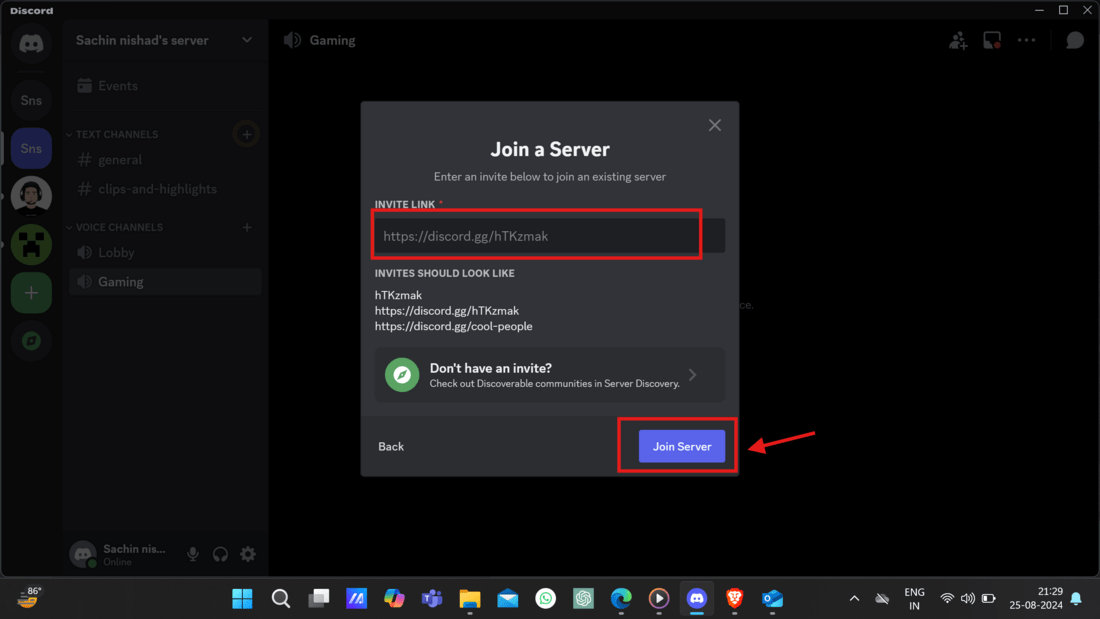
- Open the Discord app.
- On the left-hand side, you'll see a list of the servers you're already a member of. Scroll down to the bottom of this list and click the "+" icon.
- A new window will pop up. Click the "Join a Server" button.
- Paste the invite link into the text box and click "Join Server."
How to Use an Invite Link (Mobile)
The process for joining a server on the Discord mobile app is just as simple.
- Tap on the invite link.
- The link will open in your browser or the Discord app.
- Tap the "Accept Invite" button.
- You'll be taken directly to the server within the app.
No Invite Link? No Problem! How to Find New Discord Servers

What if you don't have an invite link but still want to find new communities to join? Don't fret, there are several ways to discover new Discord servers.
Method 1: Using Discord's Built-in Server Discovery
Discord has a fantastic built-in tool for finding public servers. Here's how to use it:
- Open the Discord app.
- On the left-hand sidebar, click the compass icon labeled "Explore Public Servers" or "Server Discovery."
- This will take you to a directory of some of the most popular public servers on Discord.
- You can browse by category (e.g., Gaming, Music, Education) or use the search bar to find servers related to your specific interests.
- Once you find a server that looks interesting, click on it to get a preview. You can see the server's channels and some of its members before you decide to join.
- If you like what you see, click the "Join Server" button at the top of the screen.
Method 2: Using Third-Party Server Listing Websites
The Discord Server Discovery feature is great, but it doesn't list every public server. For a more comprehensive search, you can turn to third-party server listing websites. These websites act as directories for Discord servers, allowing you to search and filter by a wide range of criteria.
Some of the most popular server listing websites include:
- DiscordHunt: (That's us!) We're dedicated to helping you find the best Discord servers out there.
- Disboard: One of the largest and most well-known server listing sites.
- Top.gg: While primarily known for Discord bots, Top.gg also has a great server listing section.
Using these sites is straightforward. Simply visit the website, use the search bar and filters to find servers that match your interests, and then click the "Join" button to be redirected to the server's invite page.
Method 3: Finding Servers Through Social Media and Online Communities
Many online communities and content creators have their own Discord servers. If you're a fan of a particular YouTuber, streamer, or subreddit, there's a good chance they have a Discord server you can join.
- Reddit: Many subreddits have their own official Discord servers. You can usually find the invite link in the subreddit's sidebar or in a pinned post. There are also subreddits specifically dedicated to listing Discord servers, such as r/discordservers.
- Twitter and Facebook: Follow your favorite content creators and communities on social media. They'll often post invite links to their Discord servers.
- Twitch and YouTube: Many streamers and YouTubers have Discord servers for their communities. They'll often have a command in their chat (e.g.,
!discord) that will give you the invite link, or they'll have the link in their channel's description.
Method 4: Ask Your Friends!
Sometimes the best way to find new servers is to ask your friends what servers they're a part of. This is a great way to find smaller, more close-knit communities.
Joining Private or Friend-Only Discord Servers
Not all Discord servers are public. Some are private, meaning they can't be found through server discovery or listing websites. The only way to join a private server is to receive a direct invite link from someone who is already a member.
If you're trying to join a friend's private server, simply ask them to send you an invite.
Troubleshooting Common Issues
Sometimes you might run into issues when trying to join a server. Here are some of the most common problems and how to solve them:
- "Invite Invalid" or "Invite Expired": This means the invite link is no longer valid. It may have been a temporary link that has expired, or the server owner may have revoked it. In this case, you'll need to get a new invite link.
- "Unable to Accept Invite": This can happen for a few reasons. You might have been banned from the server, or you might have reached the maximum number of servers you can join (100).
- Server is Full: Some Discord servers have a member limit. If a server is full, you won't be able to join until a spot opens up.
Examples of Popular Discord Servers to Join
To get you started, here are a few examples of popular Discord servers from different categories. We've tested these invite links to make sure they're valid.
For Gamers: Official Fortnite Discord Server
- Category: Gaming
- Description: The official Discord server for the popular battle royale game, Fortnite. Find teammates, get the latest news, and participate in community events.
- Invite Link: Join Server
For Developers: Python
- Category: Technology & Programming
- Description: The official Discord server for the Python programming language. Get help with code, discuss development, and connect with a massive community of programmers.
- Invite Link: Join Server
For Anime & Gaming Fans: Genshin Impact Official
- Category: Anime & Gaming Community
- Description: The official Discord server for the popular open-world action RPG, Genshin Impact. Find co-op partners, discuss character builds, and get the latest game news in a vibrant, massive community.
- Invite Link: Join Server
For Students: Study Together
- Category: Education
- Description: A massive community of students from all over the world. Find study partners, get help with your homework, and stay motivated.
- Invite Link: Join Server
For Investors: r/WallStreetBets
- Category: Finance
- Description: The official Discord server for the infamous subreddit. Discuss stocks, options, and all things finance with a large and active community.
- Invite Link: Join Server
Conclusion
Joining a Discord server is the first step to connecting with like-minded people and exploring new interests. Whether you have a direct invite link or you're starting from scratch, the methods we've outlined in this guide will help you find your next favorite community.
So what are you waiting for? Start exploring the vast world of Discord servers today. You're sure to find a place where you belong.