How to Find Your Discord ID: The Complete Guide
Learn how to find your Discord User ID quickly. Use our free tool for instant results, or follow our step-by-step guide to enable Developer Mode.
How to Find Your Discord ID: The Complete Guide
Every Discord user has a unique ID—a string of numbers that serves as your permanent digital fingerprint on the platform. Unlike usernames which can be changed, your Discord ID remains constant forever. Whether you need it for bot commands, server verification, or development purposes, knowing how to find your Discord ID is an essential skill.
In this guide, we'll show you the fastest methods to find your Discord ID, starting with the easiest option.
What Is a Discord ID?
A Discord ID is an 18-19 digit number that uniquely identifies users, servers, channels, and messages on Discord. It's generated when the account or object is created and never changes.
Example Discord ID: 123456789012345678
Discord uses these IDs internally for everything—when you mention someone, send a message, or join a server, Discord is actually working with these numeric IDs behind the scenes.
Types of Discord IDs
| Type | What It Identifies | Example Use Case |
|---|---|---|
| User ID | Your Discord account | Bot commands, verification |
| Server ID | A Discord server | API integrations, bot setup |
| Channel ID | A text/voice channel | Webhooks, bot configuration |
| Message ID | A specific message | Reporting, linking to messages |
Method 1: Use the DiscordHunt Tool (Fastest)
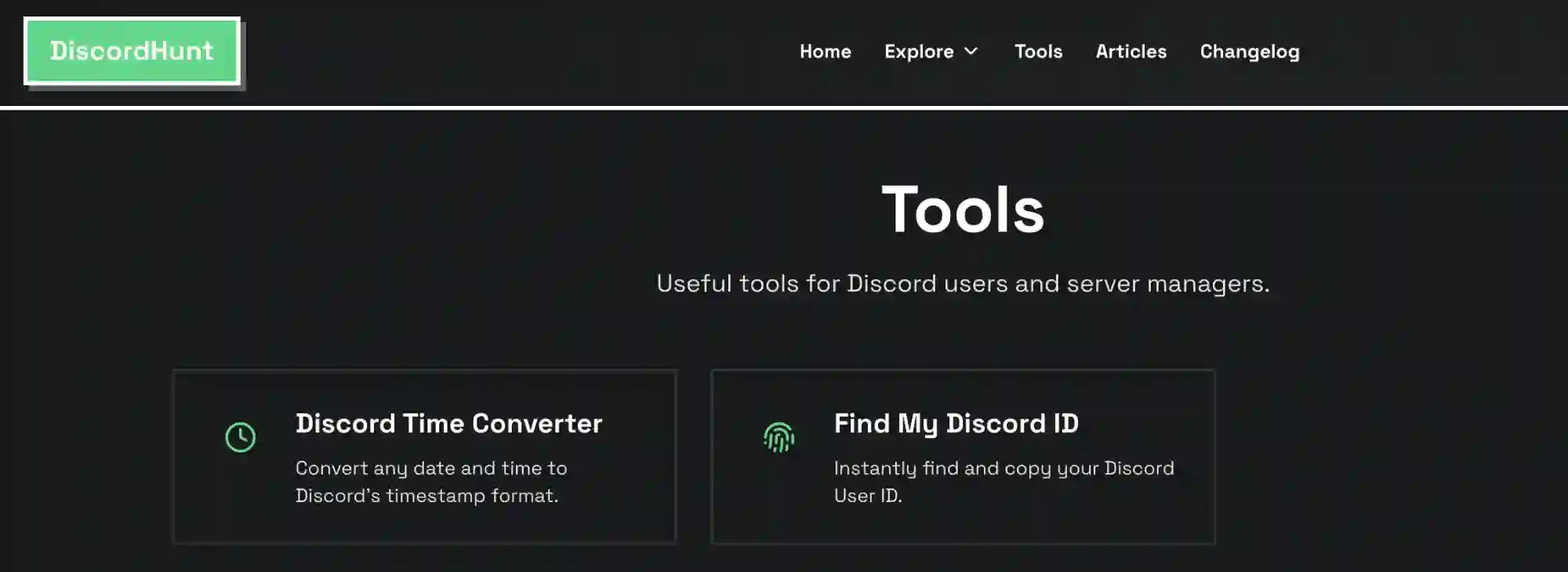
If you just need to find your own Discord User ID, this is the quickest method—no settings to change, no menus to navigate.
How It Works
- Go to our Find My Discord ID tool
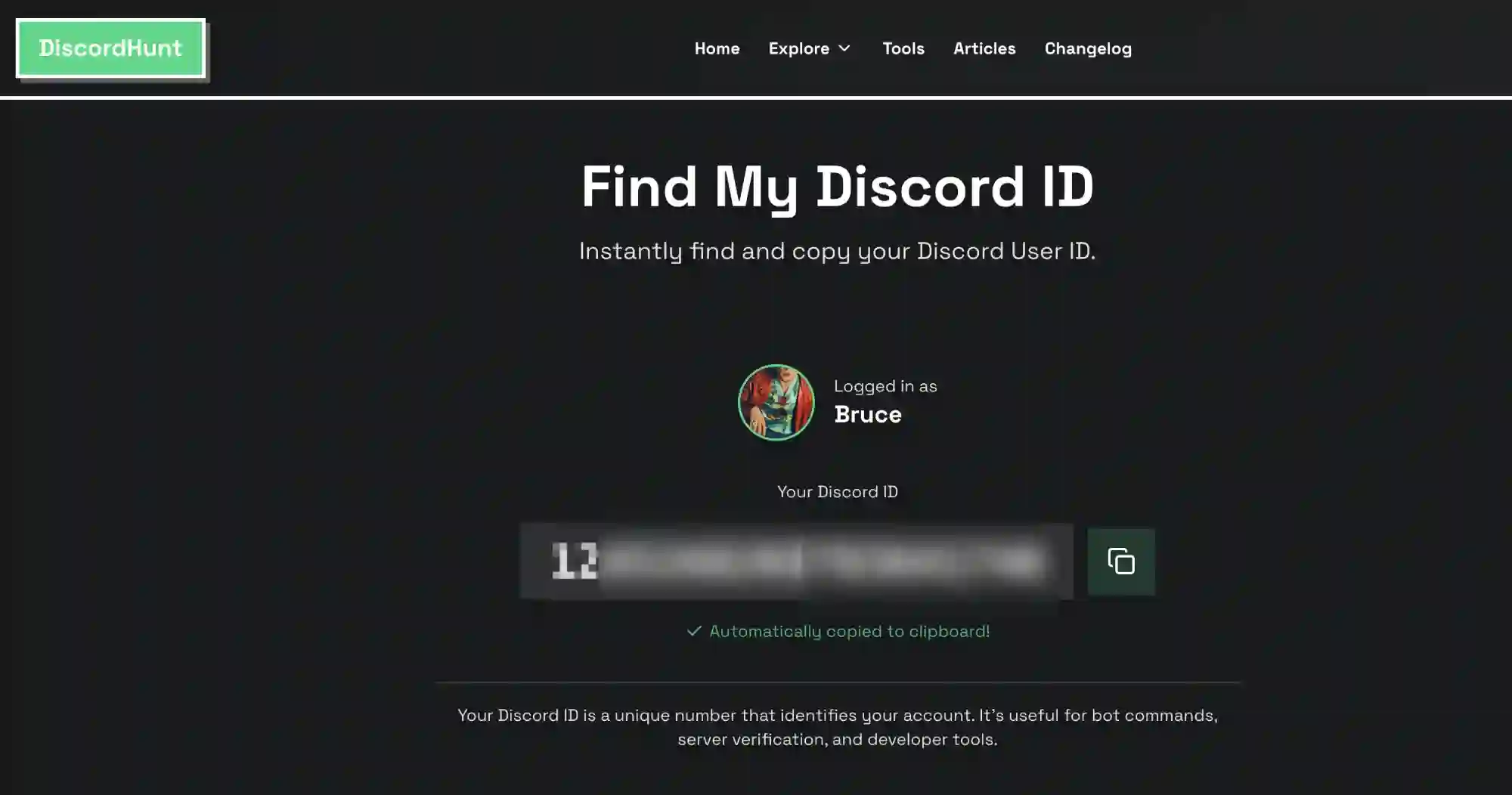
- Click "Login with Discord" to authenticate
- Your ID is automatically copied to your clipboard
That's it—three seconds and you're done. The tool displays your Discord avatar, username, and ID, with a convenient copy button if you need to grab it again.
Why Use This Method?
- Instant results — No need to dig through settings
- Auto-copy feature — ID is copied to clipboard automatically
- Visual confirmation — See your avatar and username to verify it's the right account
- Works on any device — Mobile, tablet, or desktop
👉 Try the Find My Discord ID Tool
Method 2: Enable Developer Mode in Discord
If you need to find someone else's ID, or want to copy server/channel IDs, you'll need to enable Developer Mode in Discord. This adds a "Copy ID" option to right-click menus.
On Desktop (Windows/Mac/Linux)
- Open Discord and click the gear icon (User Settings) at the bottom left
- Scroll down to App Settings and click Advanced
- Toggle Developer Mode to ON
Once enabled, you can right-click on any user, server, channel, or message and select "Copy ID".
On Mobile (iOS/Android)
- Open Discord and tap your profile picture at the bottom right
- Scroll down and tap App Settings
- Tap Behavior (Android) or scroll to find Developer Mode (iOS)
- Toggle Developer Mode to ON
On mobile, you'll need to long-press on users, channels, or servers to see the "Copy ID" option.
Copying Different Types of IDs
| To Copy... | Right-click/Long-press on... |
|---|---|
| User ID | A user's avatar or name |
| Server ID | The server name at the top |
| Channel ID | A channel in the sidebar |
| Message ID | A message in chat |
Method 3: Through the Discord API (For Developers)
If you're building a bot or application, you can retrieve IDs programmatically using the Discord API.
Example using Discord.js:
// Get user ID from a message
const userId = message.author.id;

// Get server (guild) ID
const serverId = message.guild.id;

// Get channel ID
const channelId = message.channel.id;
For API-based approaches, refer to the Discord Developer Documentation.
Common Uses for Discord IDs
Bot Commands
Many bots require user IDs for moderation commands:
!ban 123456789012345678 Spamming
!warn 123456789012345678 Breaking rules
Server Verification Systems
Some servers use verification bots that ask for your Discord ID to link your account with an external service or game.
Reporting Users
When reporting a user to Discord Trust & Safety, providing their User ID ensures the right account is reviewed—usernames can be changed, but IDs cannot.
Development & Debugging
When building Discord bots or integrations, you'll frequently need IDs for testing permissions, sending messages to specific channels, or identifying users.
Webhook Configuration
Setting up webhooks requires a Channel ID to specify where messages should be posted.
Frequently Asked Questions
Will my Discord ID ever change?
No. Your Discord ID is permanent and assigned when your account is created. Even if you change your username, display name, or avatar, your ID stays the same.
Can someone find my account using just my ID?
Not directly through Discord's interface—there's no "search by ID" feature for regular users. However, users with Developer Mode enabled can see your ID, and bots/developers can use the API to fetch basic public profile information.
What's the difference between Discord ID and username?
| Discord ID | Username | |
|---|---|---|
| Format | 18-19 digit number | Text (e.g., cooluser) |
| Changeable | Never | Yes (with limitations) |
| Visible | Only in Developer Mode | Always visible |
| Purpose | Internal identification | Display name for others |
Is it safe to share my Discord ID?
Generally, yes. Your Discord ID is not sensitive information—it's similar to sharing your username. It cannot be used to log into your account or access private information. However, as with any personal identifier, only share it when there's a legitimate reason.
Conclusion
Finding your Discord ID is simple once you know where to look. For the fastest results when you need your own ID, use our Find My Discord ID tool—it takes just seconds and automatically copies your ID.
If you need to find other users' IDs or server/channel IDs, enable Developer Mode in Discord's settings for access to the "Copy ID" option throughout the app.
Now that you know how to find Discord IDs, you're ready to use advanced bot commands, set up verification systems, or dive into Discord development.